
Mobile setup
Qobuz on iPhone or iPad
Install using the App Store region route, or use Amarra Play as an Indian App Store alternative.
Download links checked 23 September 2026First, check whether Qobuz installs normally
- 1Step 1
Open the official Qobuz App Store page
Open this link on the iPhone or iPad where you want to use Qobuz. If the App Store shows Get or a cloud-download button, tap it and skip to the sign-in step. If it says the app is unavailable in your country or region, continue below. Qobuz currently requires iOS or iPadOS 16.4 or newer.
Open Qobuz in the App Store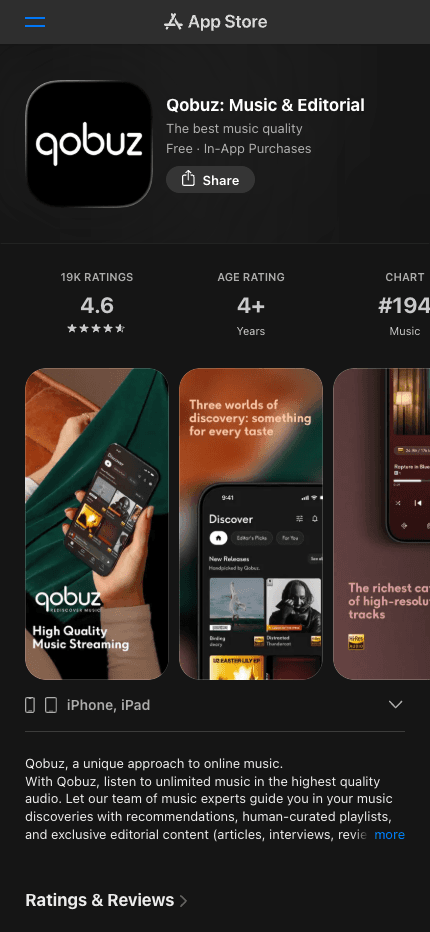
This is the official Qobuz App Store listing. Open the link on the iPhone or iPad itself so Apple can show the install option for that device.Screenshot: Apple App Store
If the app is unavailable in India
The following steps change only the App Store country or region. Complete them on the same iPhone or iPad.
- 1Step 2
Clear anything that blocks the region change
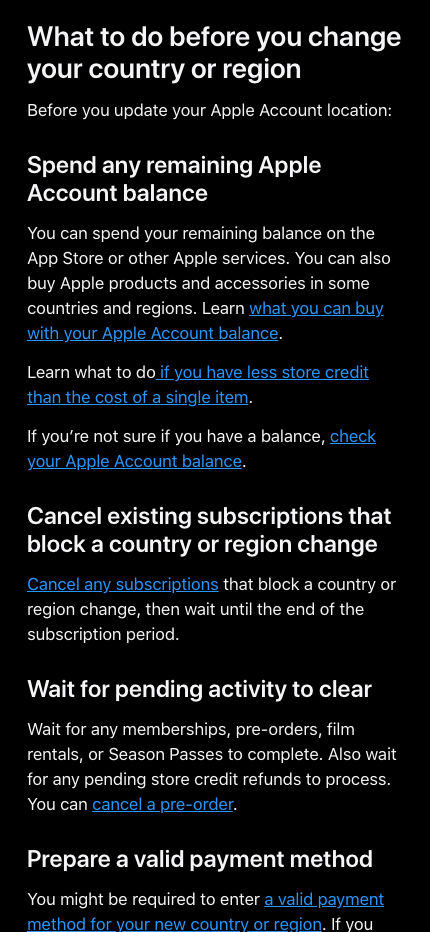
Before Apple allows the change, you may need to spend any Apple Account balance, wait for pending purchases or refunds, leave Family Sharing, and cancel a subscription that blocks the change. A cancelled subscription may need to reach the end of its paid period first.
Read Apple's checklist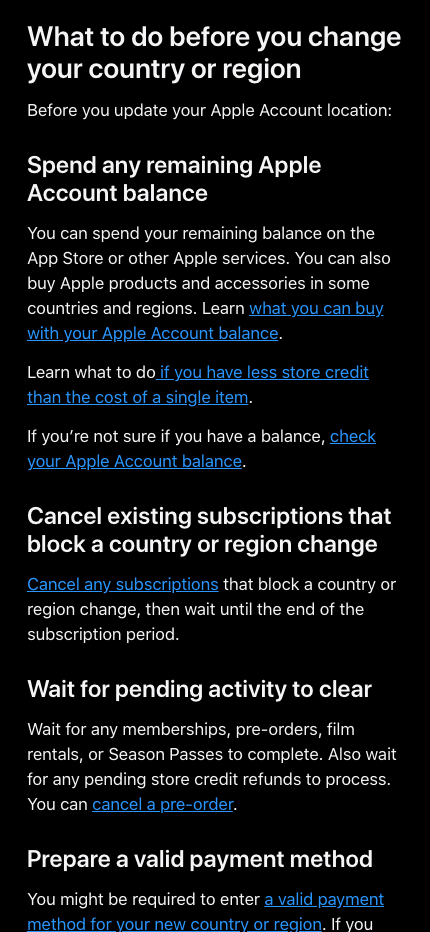
Apple lists the items that can prevent a country or region change. Clear every item that applies to your account before continuing.Screenshot: Apple Support - 2Step 3
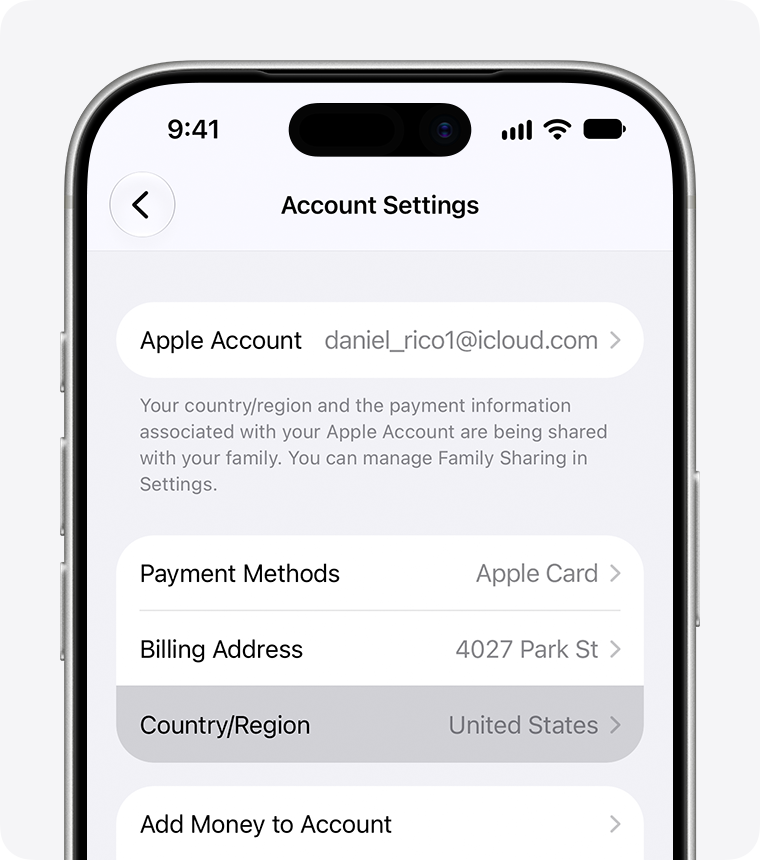
Change Country/Region to United States
Open Settings, tap your name, then Media & Purchases, View Account, Country/Region, and Change Country or Region. Choose United States, accept Apple's terms, and complete the billing information Apple requests. Apple may require a valid payment method and billing address for the new region.
Open Apple's full instructions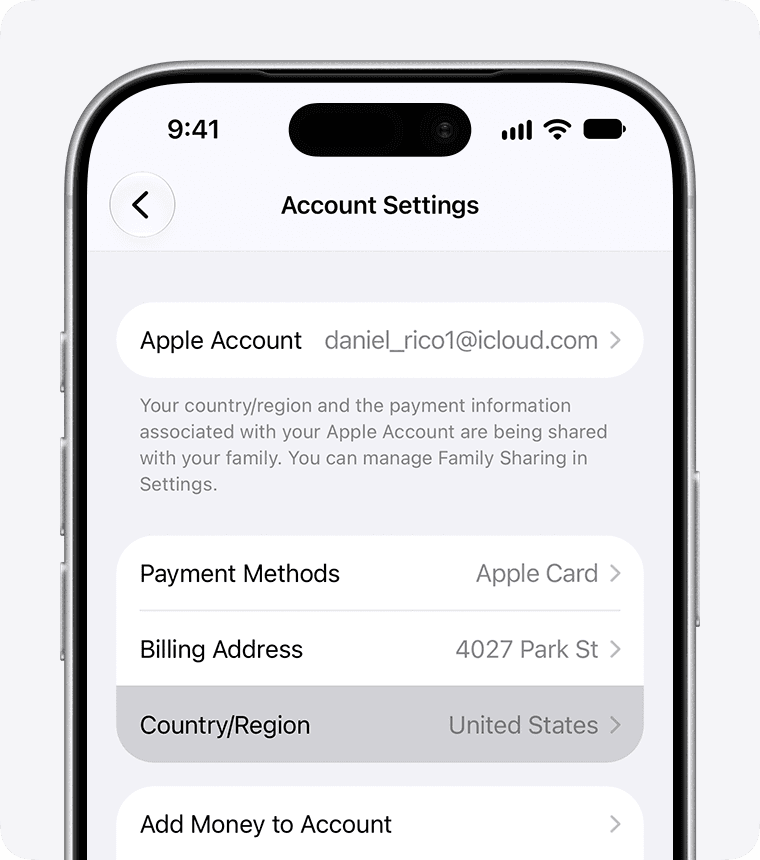
In Account Settings, open Country/Region and select United States.Screenshot: Apple Support - 3Step 4
Install Qobuz
Open the official Qobuz link again and tap Get or the cloud-download button. Wait for the installation to finish before opening the app. After it is installed, you may change the App Store region back to India; Apple applies the same account checks when changing back. A later app update may require the US region again.
Open Qobuz in the App StoreReturn to this official listing after the region change, then install Qobuz.Screenshot: Apple App Store
Sign in to Qobuz
- 1Step 5
Use the supplied email and password
Open Qobuz and choose Sign in. Enter the Qobuz email and password shown in your AudiophileStream account. Do not use Sign in with Apple, Google, or Facebook.
Open your AudiophileStream account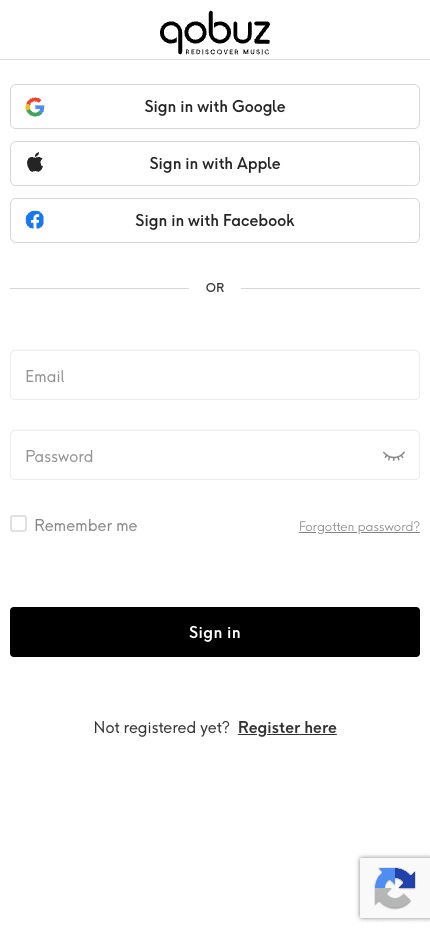
Use the Email and Password fields, then tap Sign in.Screenshot: Qobuz sign-in

Alternative: use Amarra Play without changing region
This is the easier fallback when Apple will not allow a region change or you do not want to alter the App Store account.
- 1Step 6
Install Amarra Play and add Qobuz
Install Amarra Play from the Indian App Store. Inside Amarra Play, buy the Qobuz streaming integration, then add Qobuz and sign in with the email and password from your AudiophileStream account. The app download is free, but Qobuz access is a paid, one-time in-app purchase; confirm the current price in the App Store before buying.
Open Amarra Play in the Indian App Store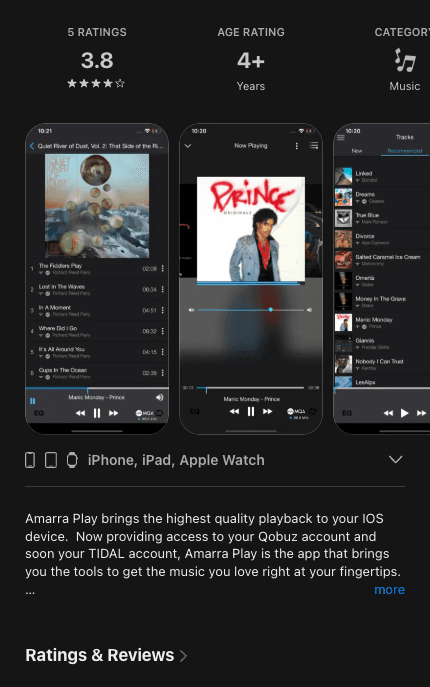
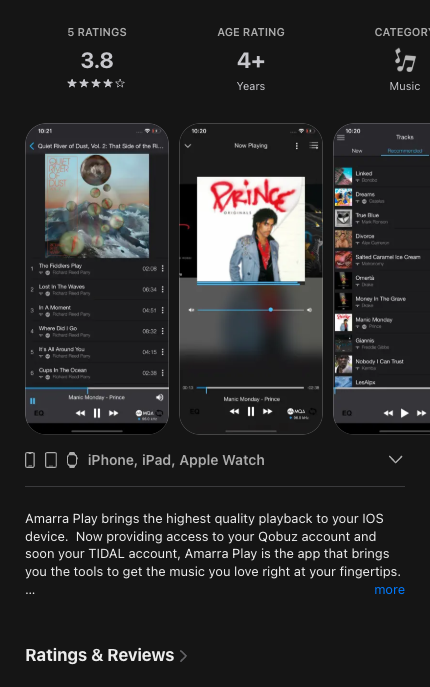
Amarra Play is available from the Indian App Store and supports both TIDAL and Qobuz through paid in-app integrations.Screenshot: Apple App Store
Downloads and official help
Open the exact resources referenced in this guide.