
Streamers and Hi-Fi
Qobuz on WiiM
Add the service in WiiM Home, sign in, and set the streaming quality.
Add Qobuz to WiiM Home
Keep the phone and WiiM on the same home Wi-Fi. Do not use a guest Wi-Fi network.
- 1
Open WiiM Home and select your player
Open WiiM Home, select the WiiM you want to hear, then tap Browse. Under Music Services, tap Qobuz. If WiiM asks for an update first, complete it and return to Browse.
Open the WiiM Home app page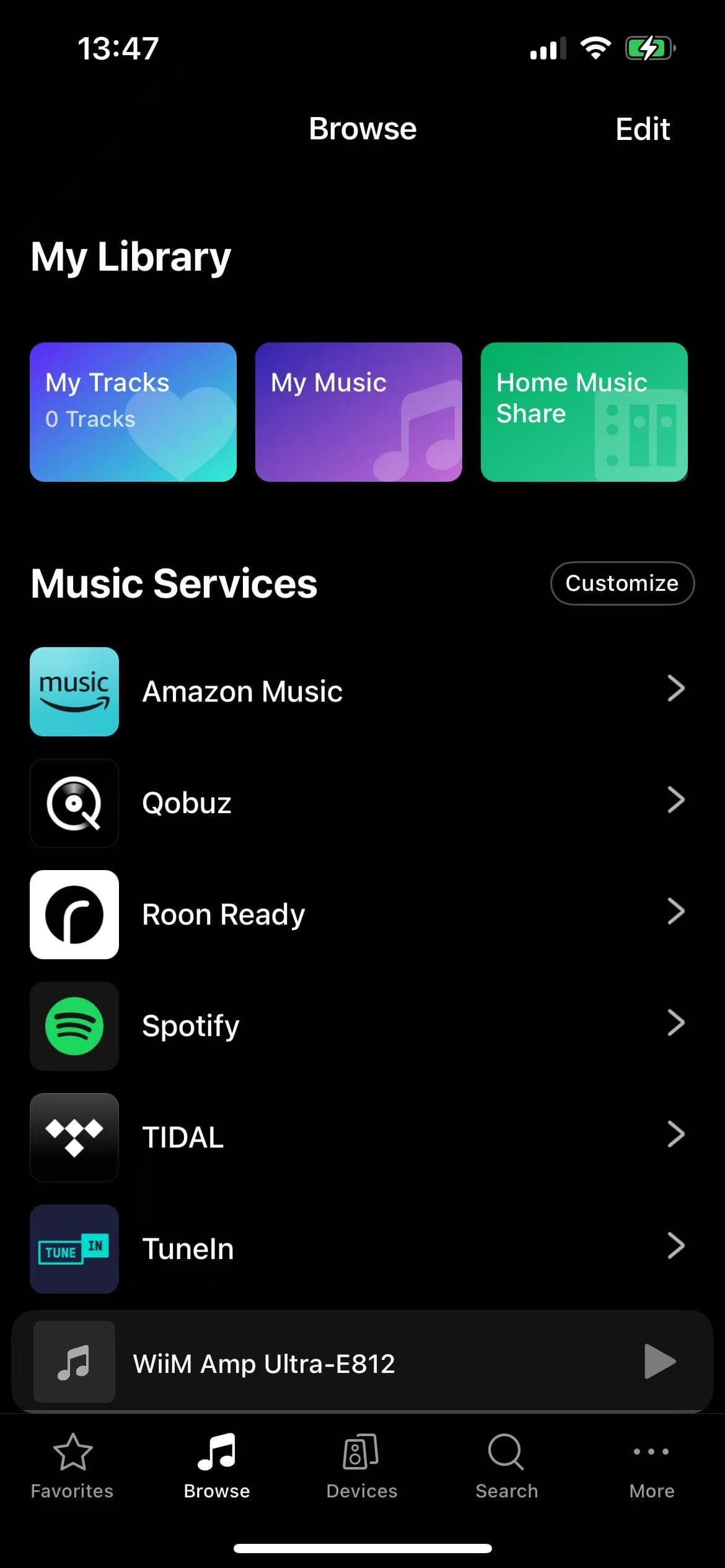
In Browse, find Qobuz under Music Services. The selected WiiM is shown in the player bar at the bottom.Screenshot: WiiM Support - 2
Sign in and open Qobuz
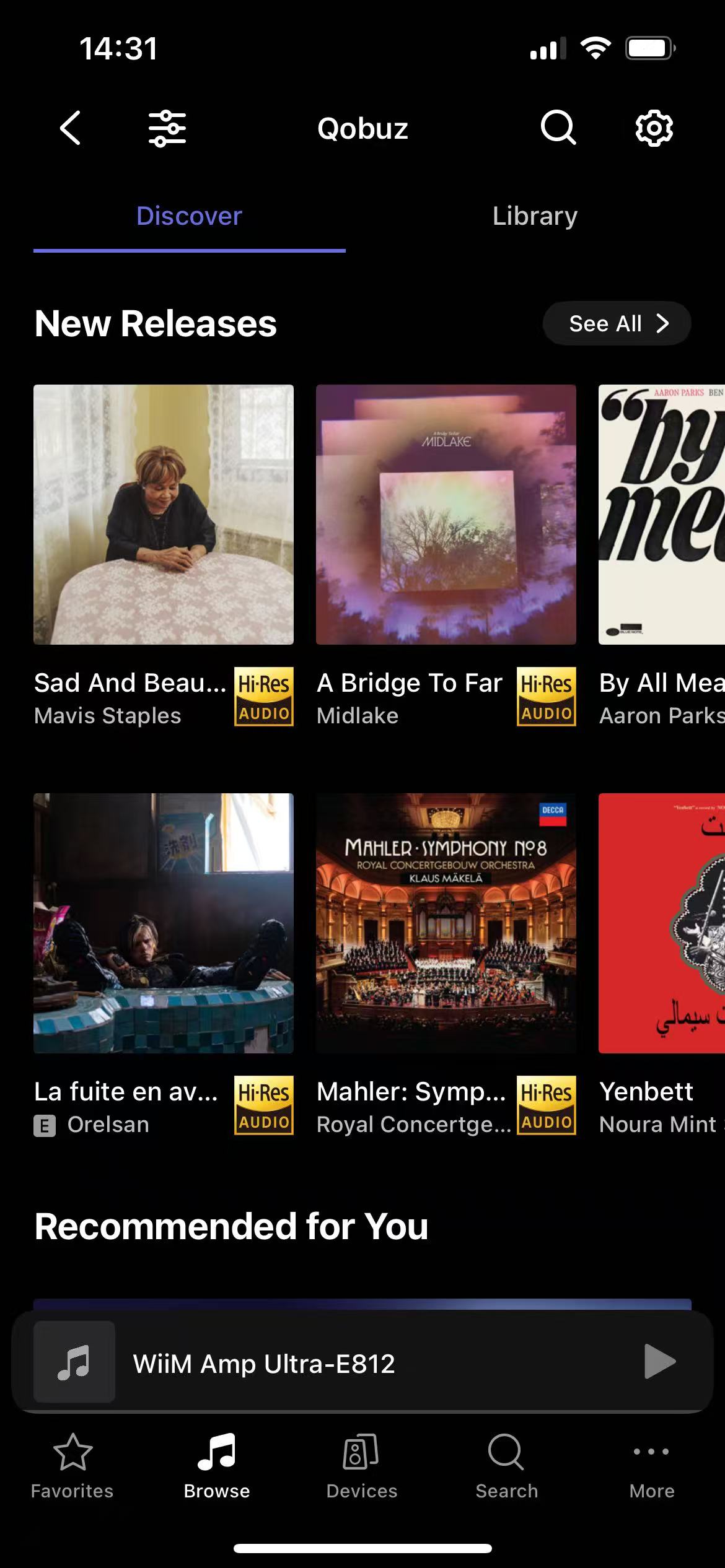
Enter the Qobuz email and password from your AudiophileStream dashboard. After sign-in, WiiM Home opens the Qobuz home screen. Choose an album or track and start playing.
Open your AudiophileStream account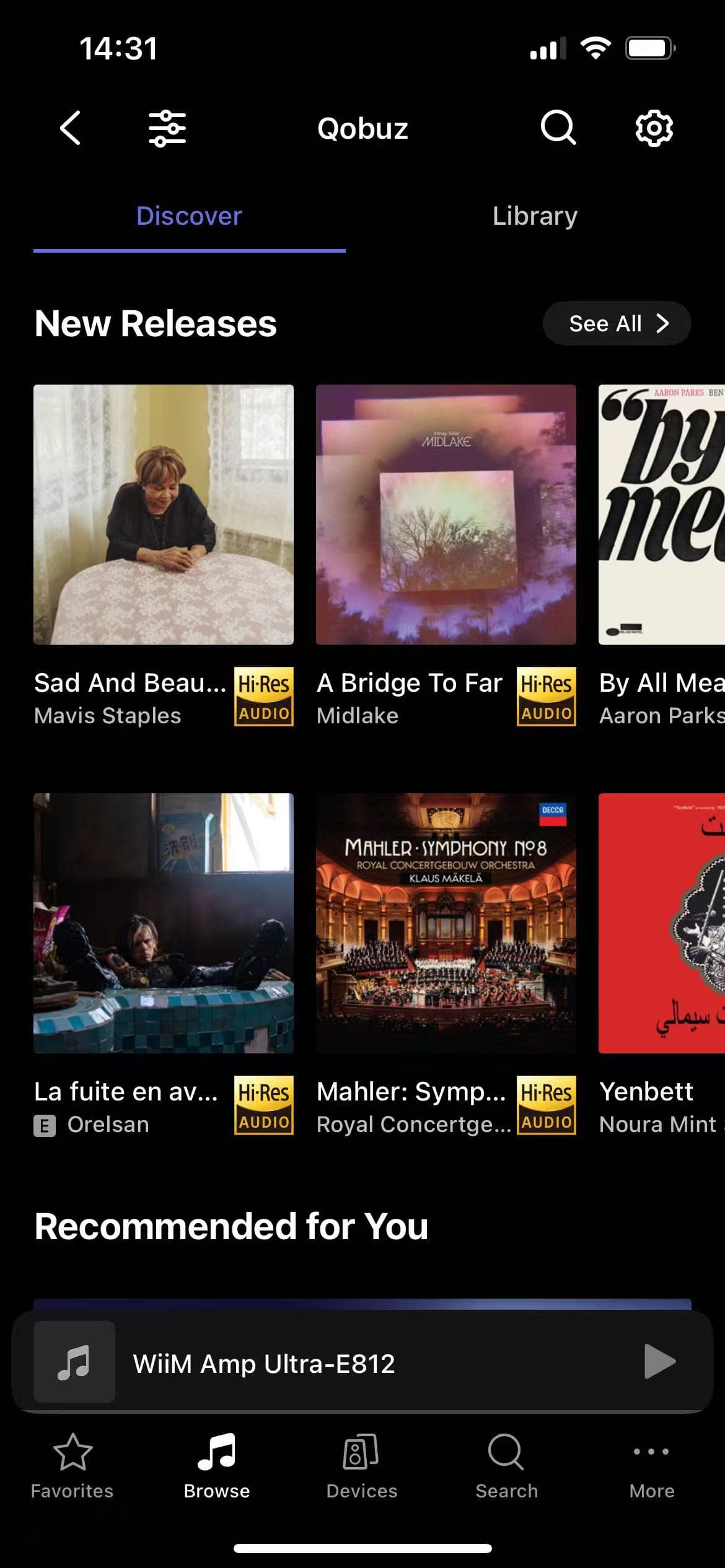
This Qobuz screen confirms that the service is connected inside WiiM Home.Screenshot: WiiM Support - 3
Choose the streaming quality
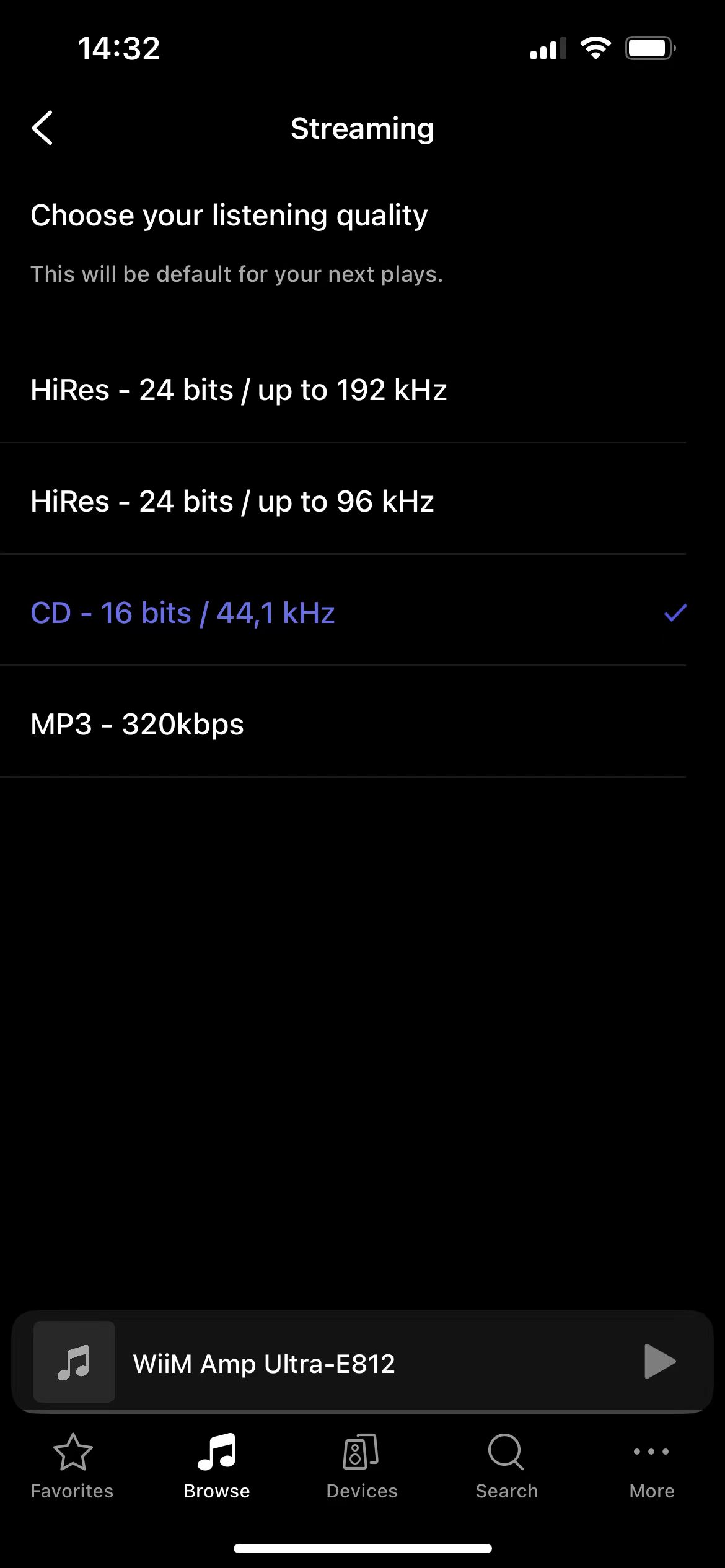
Inside Qobuz in WiiM Home, tap the settings icon, open Quality, and choose Max or the highest lossless option your internet connection can play reliably.
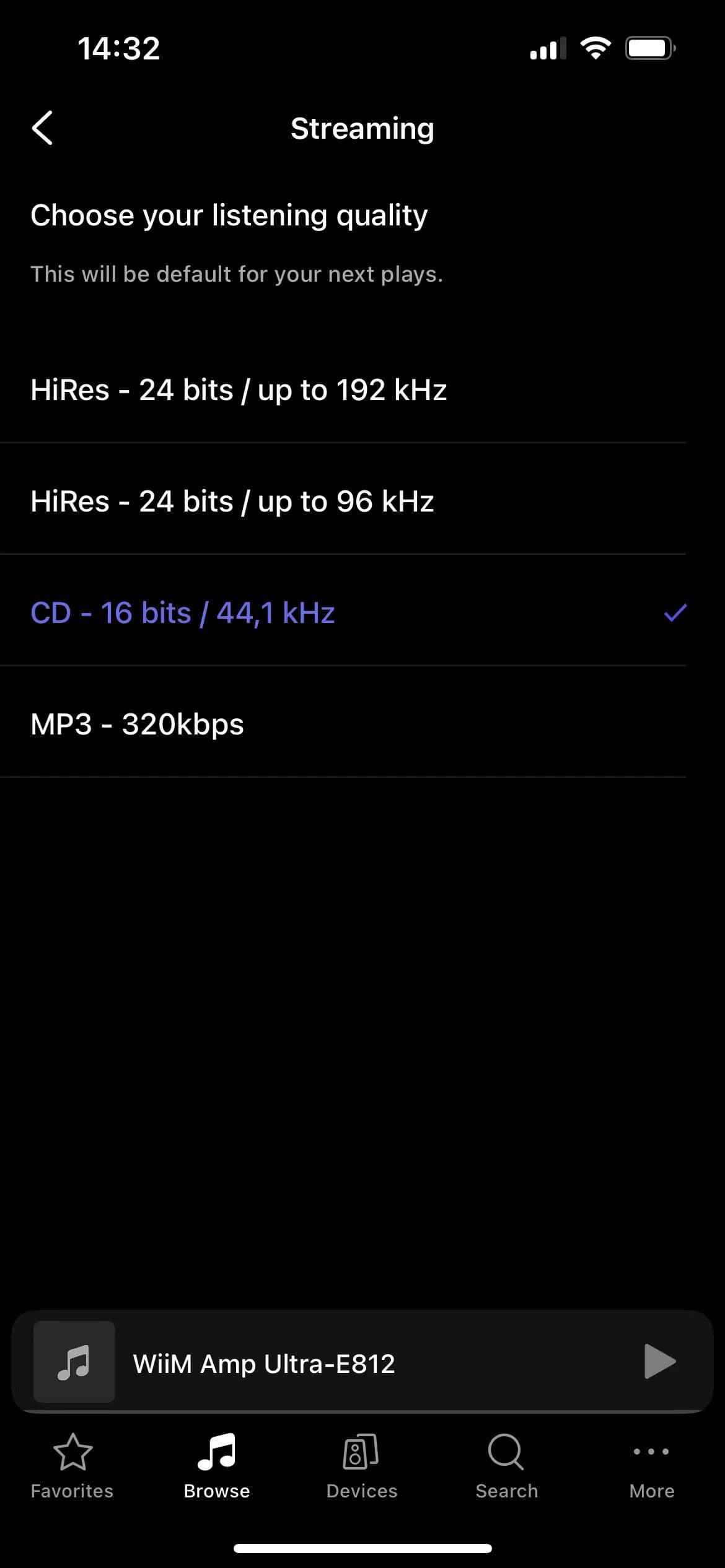
Choose the highest reliable Qobuz quality. You can lower it later if playback pauses or skips.Screenshot: WiiM Support
If sign-in or playback does not work
- 1
Confirm that the phone and WiiM are on the same home network, then close and reopen WiiM Home.
- 2
If the sign-in page is blank on Android, turn off Desktop site in the browser and try again. Chrome can be used temporarily if another browser does not return to WiiM Home.
- 3
If Qobuz still does not open, remove the failed service login in WiiM Home and sign in again with VPN disabled on the phone.
Downloads and official help
Open the exact resources referenced in this guide.