
Mobile setup
TIDAL on Android phone or tablet
Install the current Android app safely, including download, security-permission, and Samsung Auto Blocker steps.
Download links checked 24 September 2026Download the installer and TIDAL
Keep this guide open and complete one step at a time. The whole process normally takes about five minutes.
- 1
Install APKMirror Installer
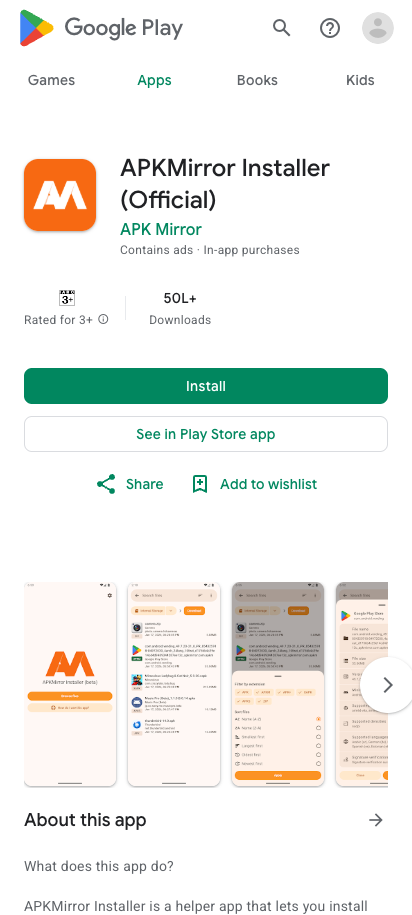
Open Google Play, then tap Install. When it finishes, return to this guide. Do not open the installer yet.
Open APKMirror Installer in Google Play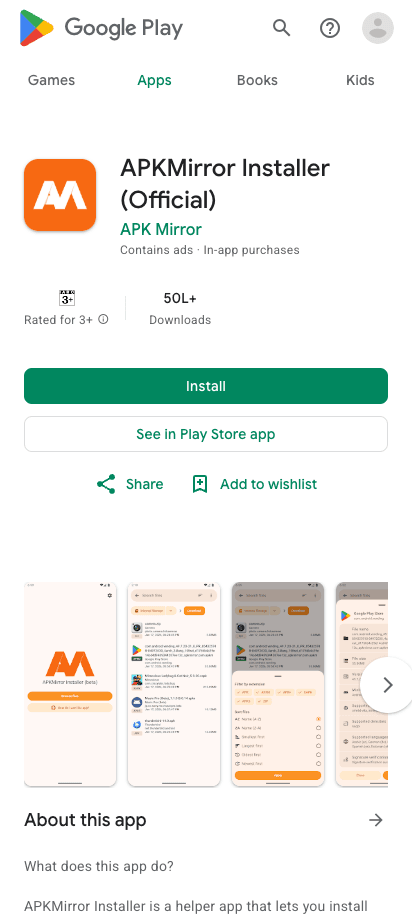
This is the genuine APKMirror Installer listing. Tap Install in the Play Store app.Screenshot: Google Play - 2
Open the TIDAL download page
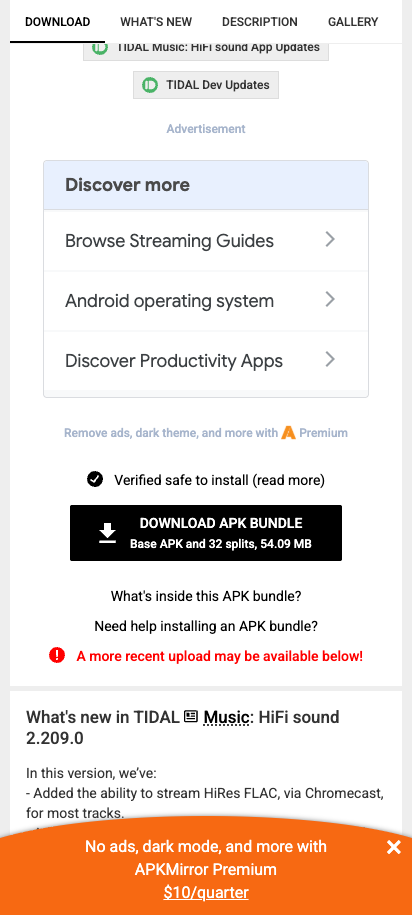
Tap the button below. On APKMirror, scroll to the download section and tap Download APK Bundle.
Open the checked TIDAL download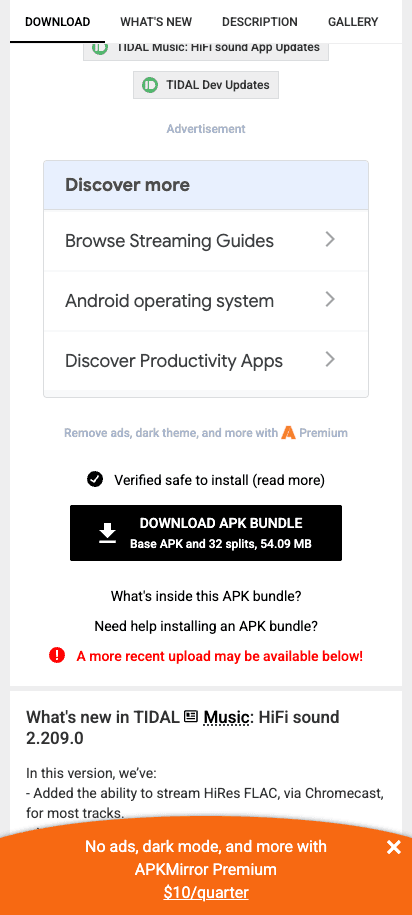
On the TIDAL release page, use the Download APK Bundle control shown here.Screenshot: APKMirror - 3
Wait for the download to begin
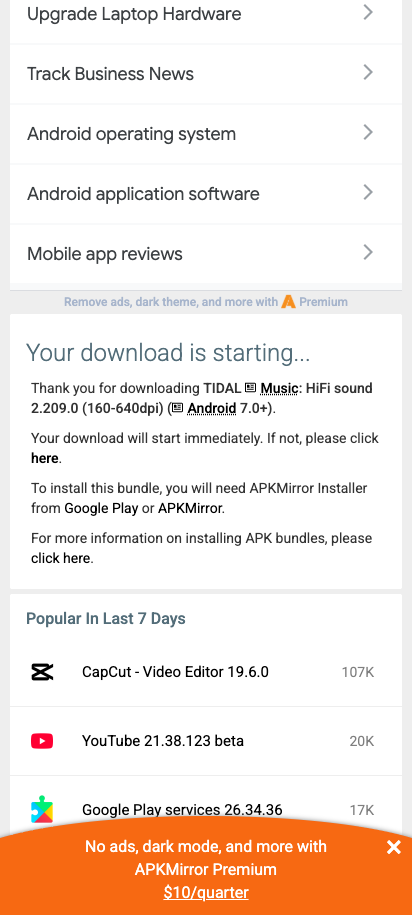
APKMirror may show a 15-second wait. Keep this page open; the download starts automatically when the wait finishes. Ignore buttons inside advertisements.
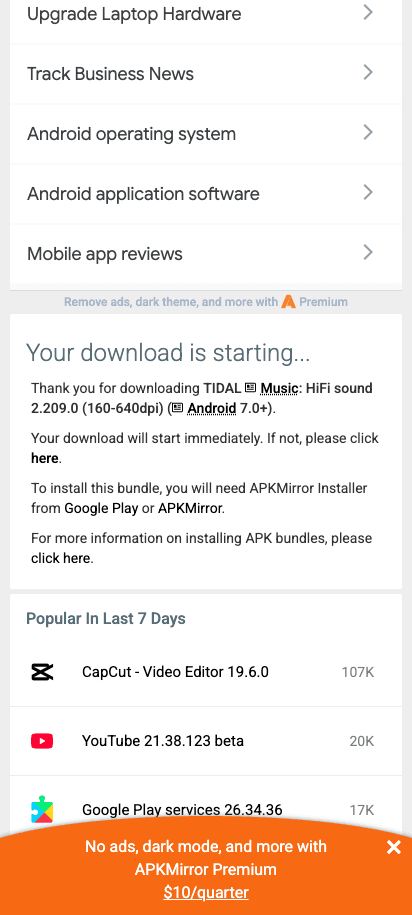
You should see Your download is starting. The file then appears in your Downloads folder.Screenshot: APKMirror
Install TIDAL
The wording can differ slightly by phone. Follow the highlighted control in each picture.
- 1Samsung phones only
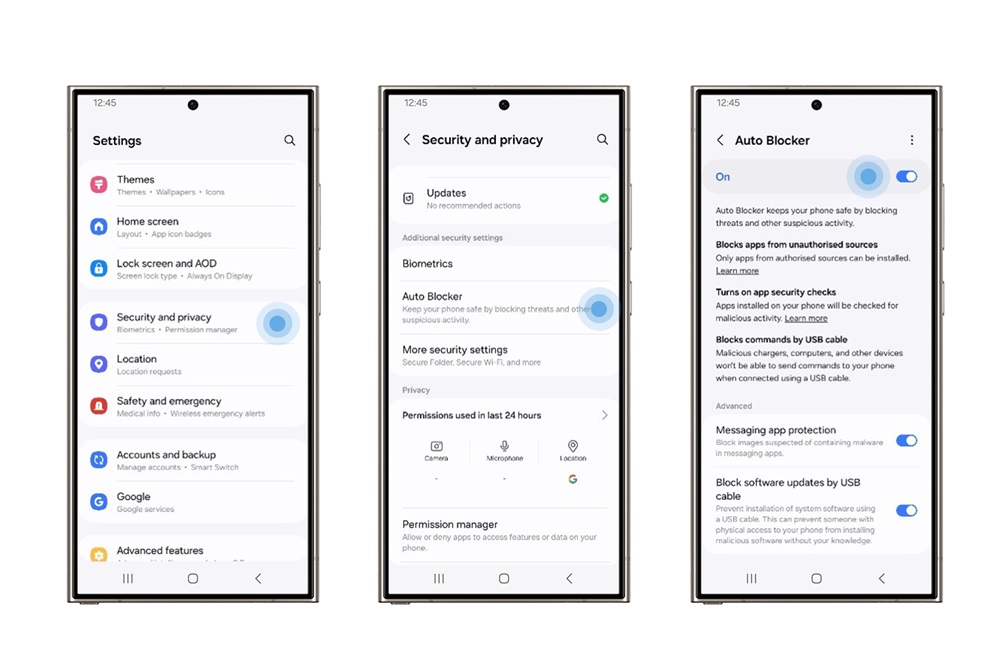
Samsung only: temporarily turn off Auto Blocker
If your phone is not a Samsung, skip this step. On Samsung, open Settings, search for Auto Blocker, open it, and turn the switch off temporarily.
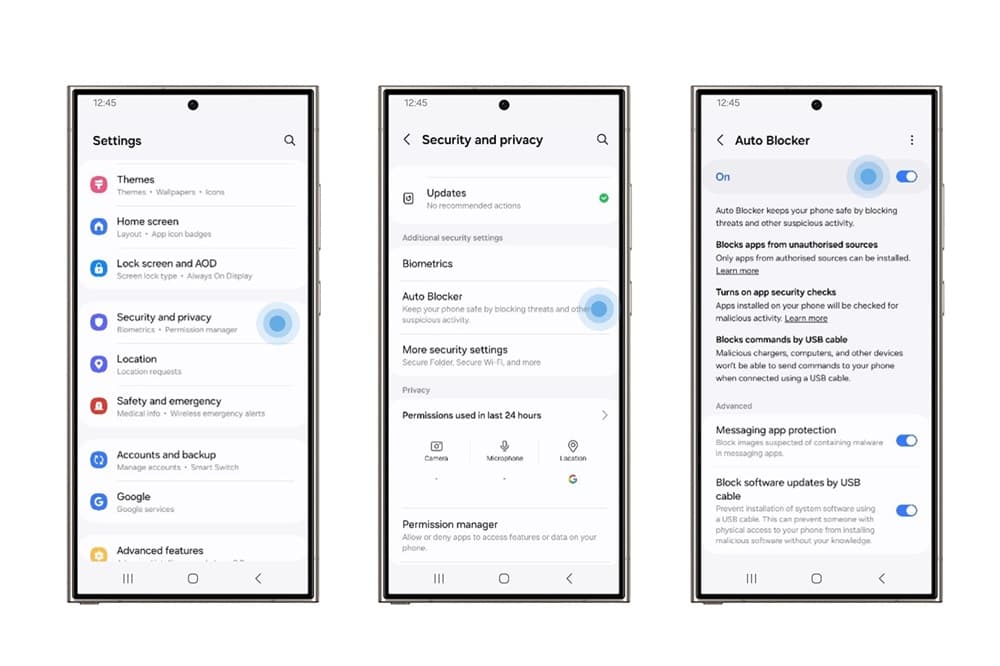
Samsung's screen may vary by One UI version. Open Auto Blocker and turn the top switch off temporarily.Screenshot: Samsung Newsroom - 2
Open APKMirror Installer
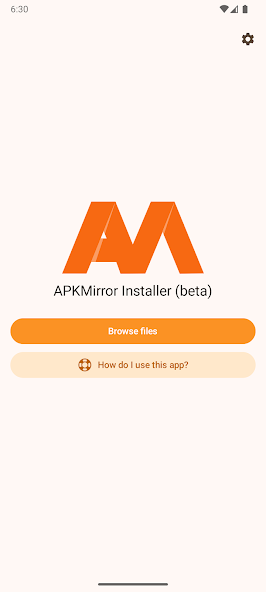
Open APKMirror Installer from your app list, then tap Browse files. If Android asks for access to files, photos, or media, tap Allow.
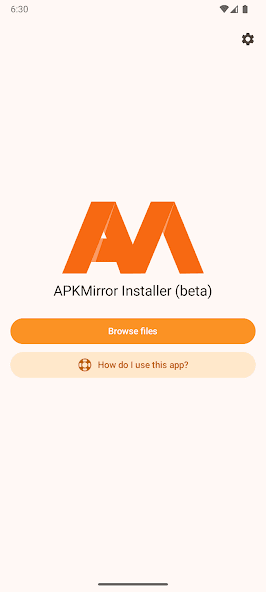
Tap Browse files. This is a real screenshot from the current APKMirror Installer gallery.Screenshot: APKMirror Installer on Google Play - 3
Choose the downloaded TIDAL file
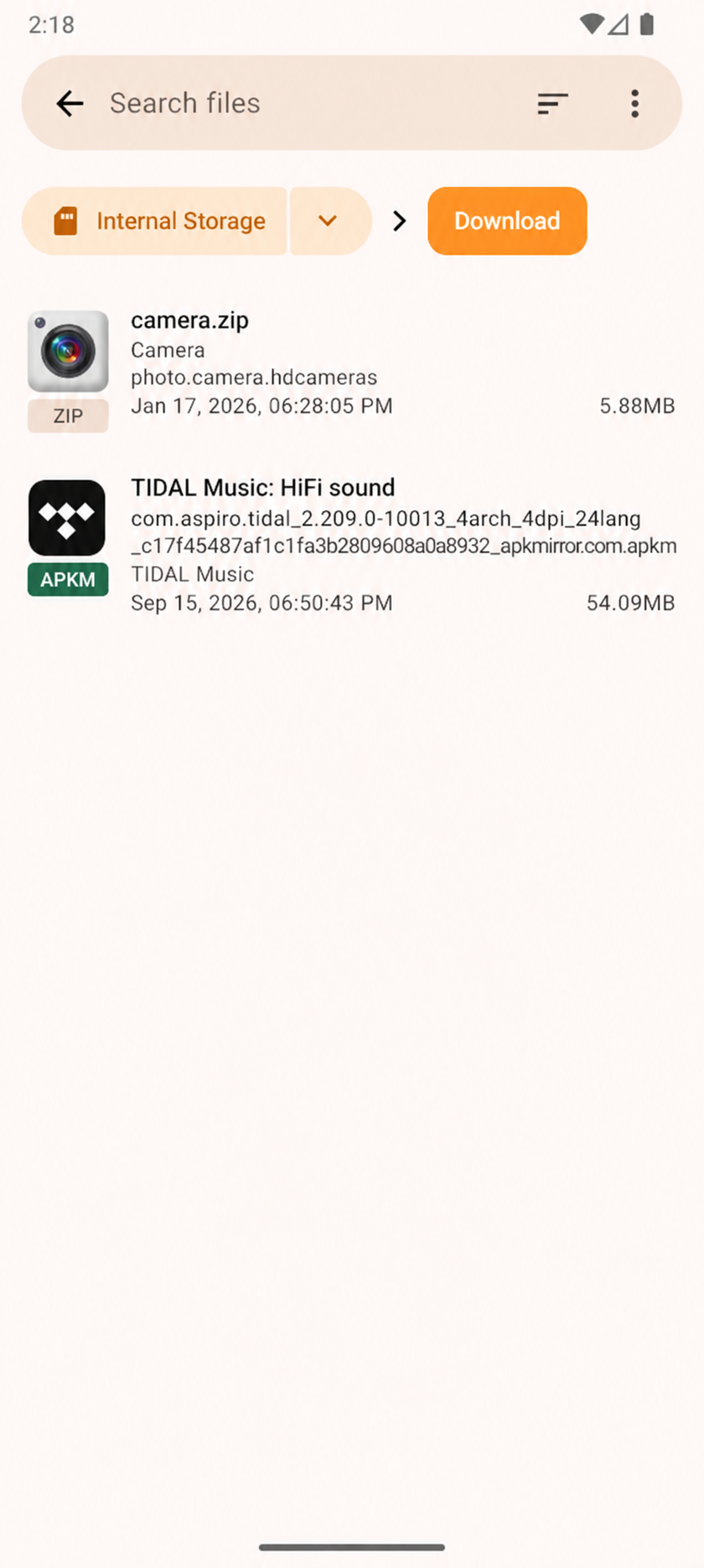
In APKMirror Installer, tap Browse files. Open Downloads, then tap the TIDAL file ending in .apkm.
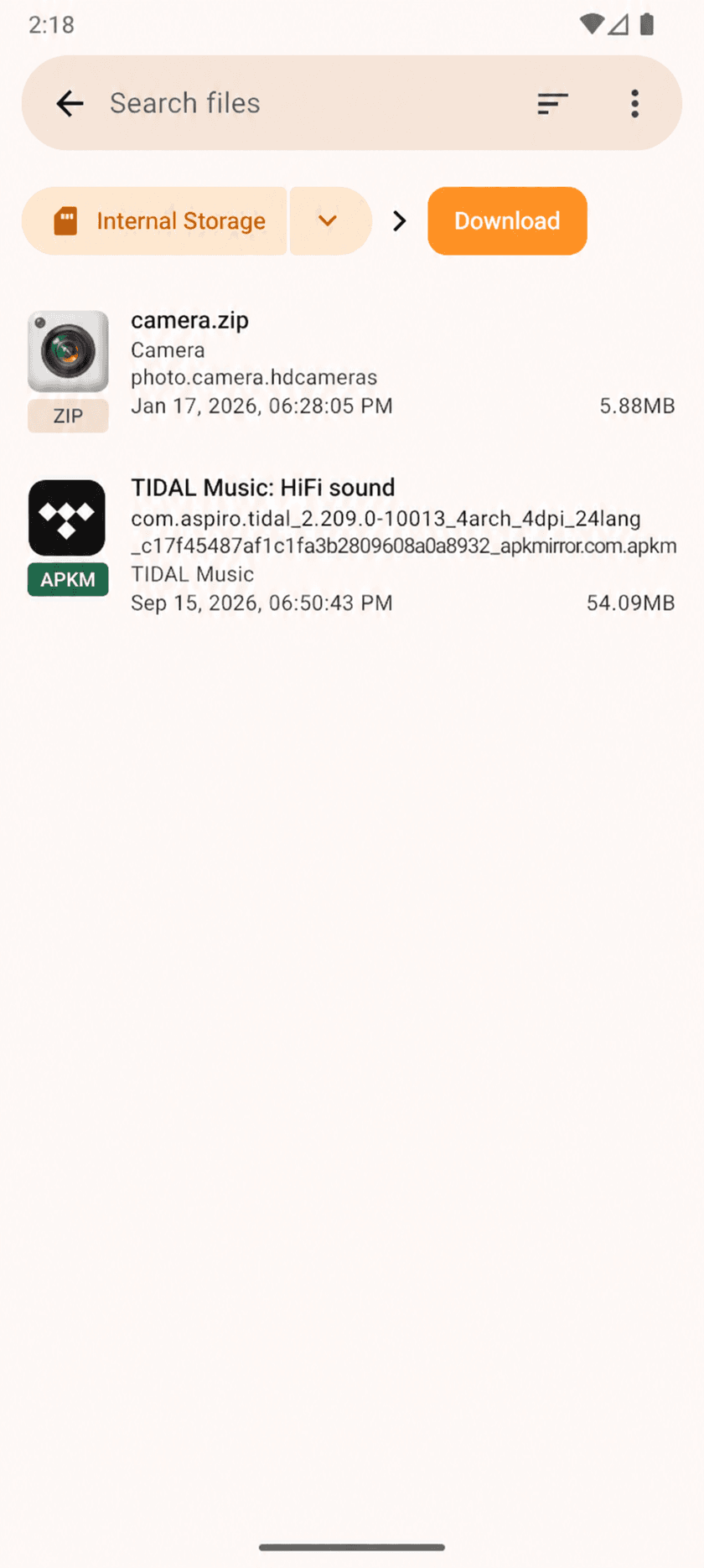
Tap the TIDAL bundle whose filename ends in .apkm.Screenshot: APKMirror Installer on Google Play - 4
Start the installation
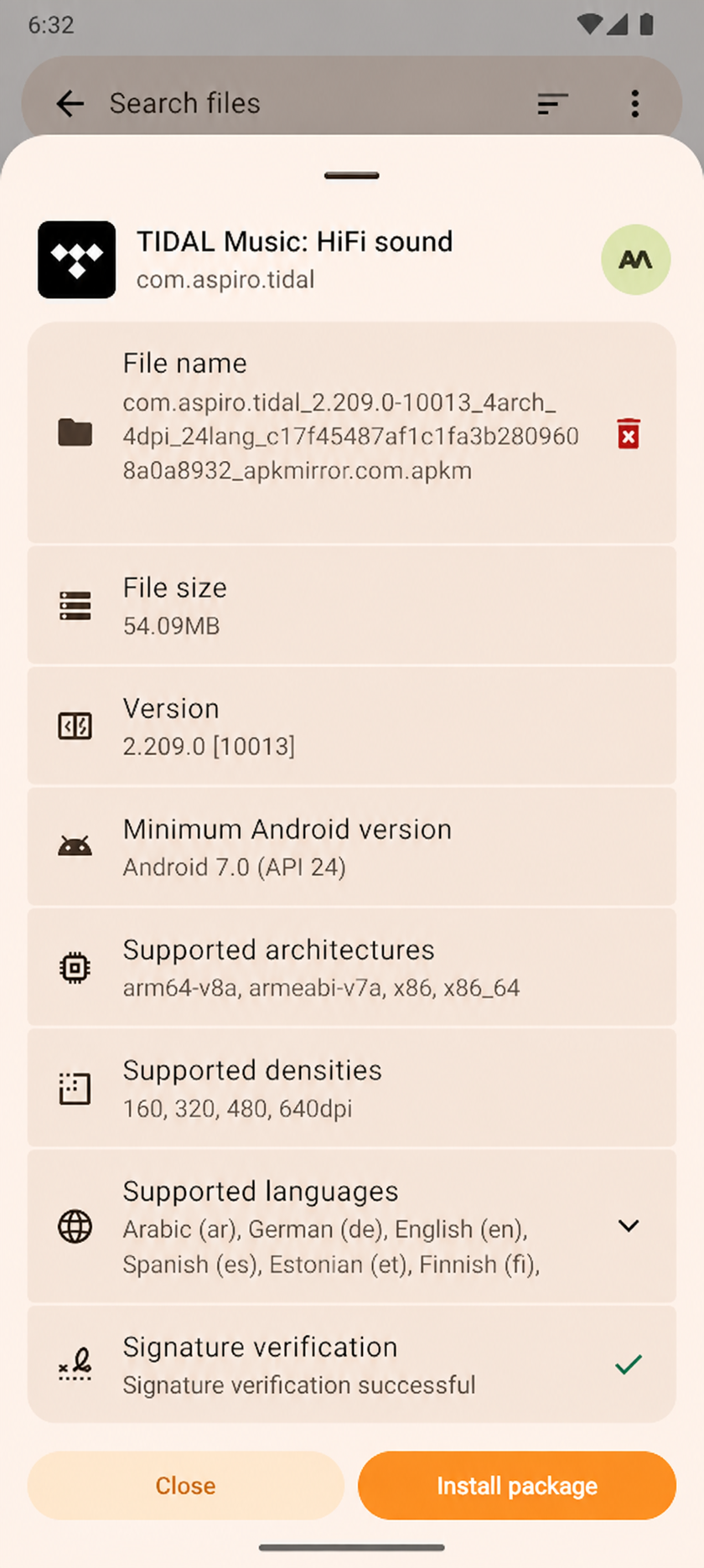
After the file is checked, tap Install package. The free installer may instead show Watch ad and install; either option continues the installation.
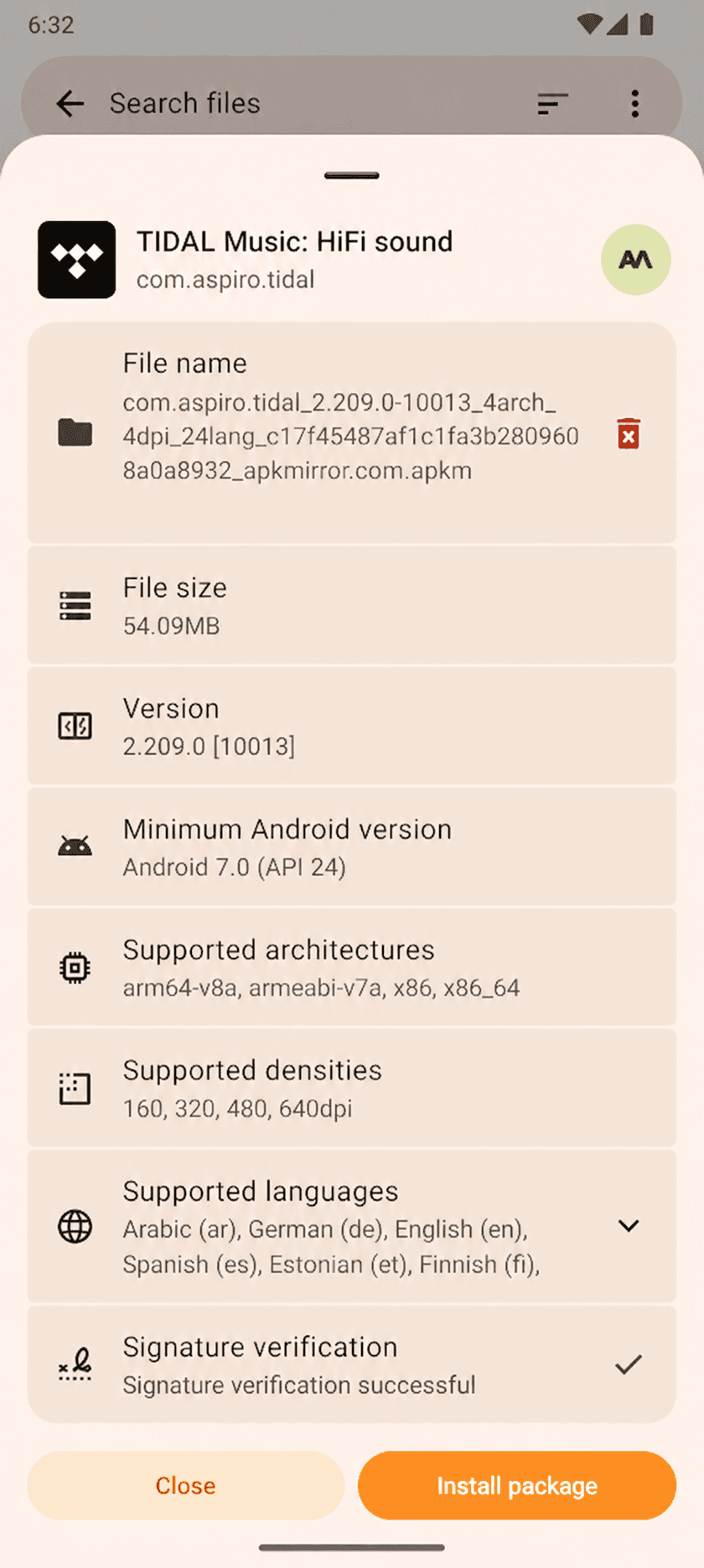
Confirm that the app is TIDAL, then tap Install package.Screenshot: APKMirror Installer on Google Play - 5
Allow installation when Android asks
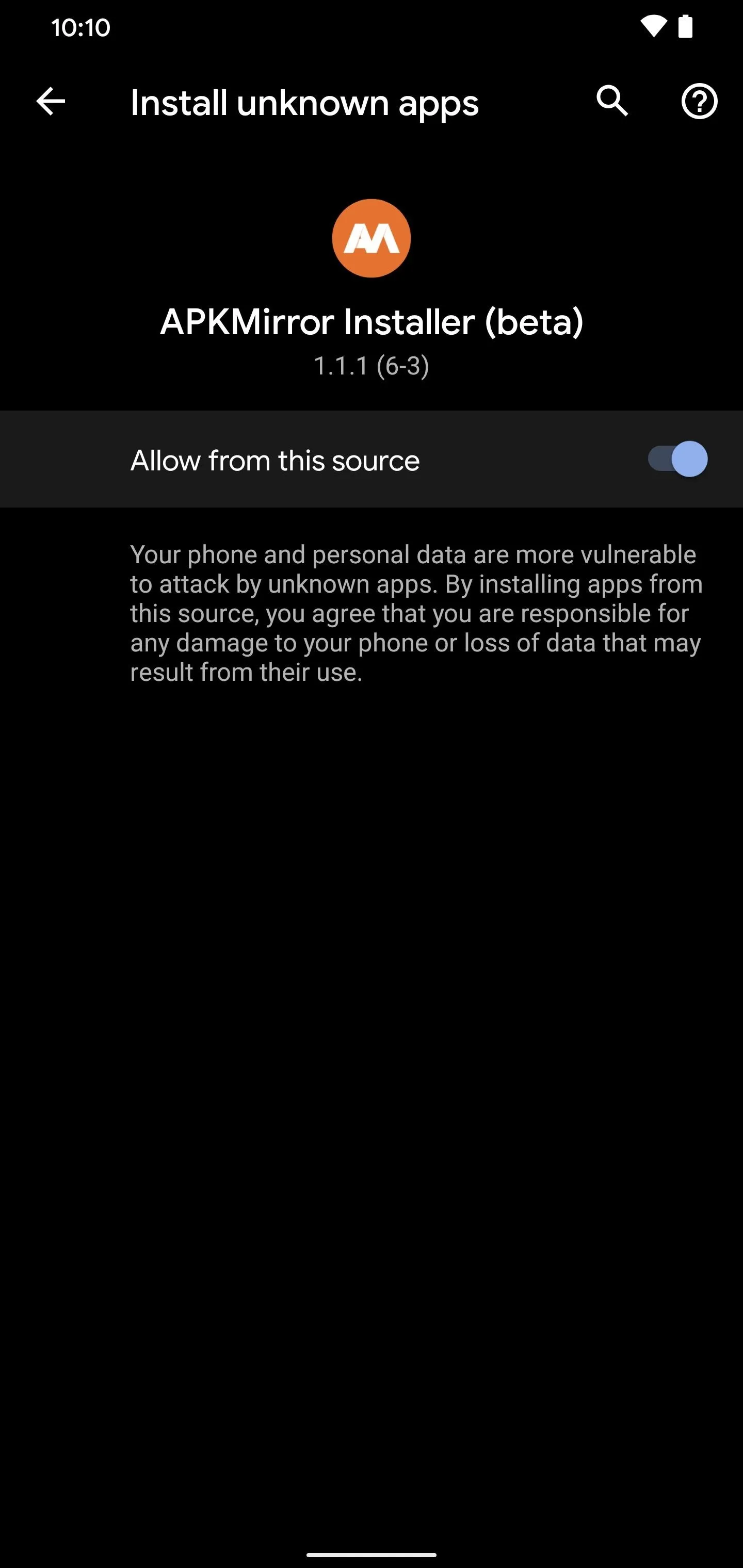
If Android opens an Install unknown apps screen, turn on Allow from this source. Press Back once to return to APKMirror Installer, then continue.
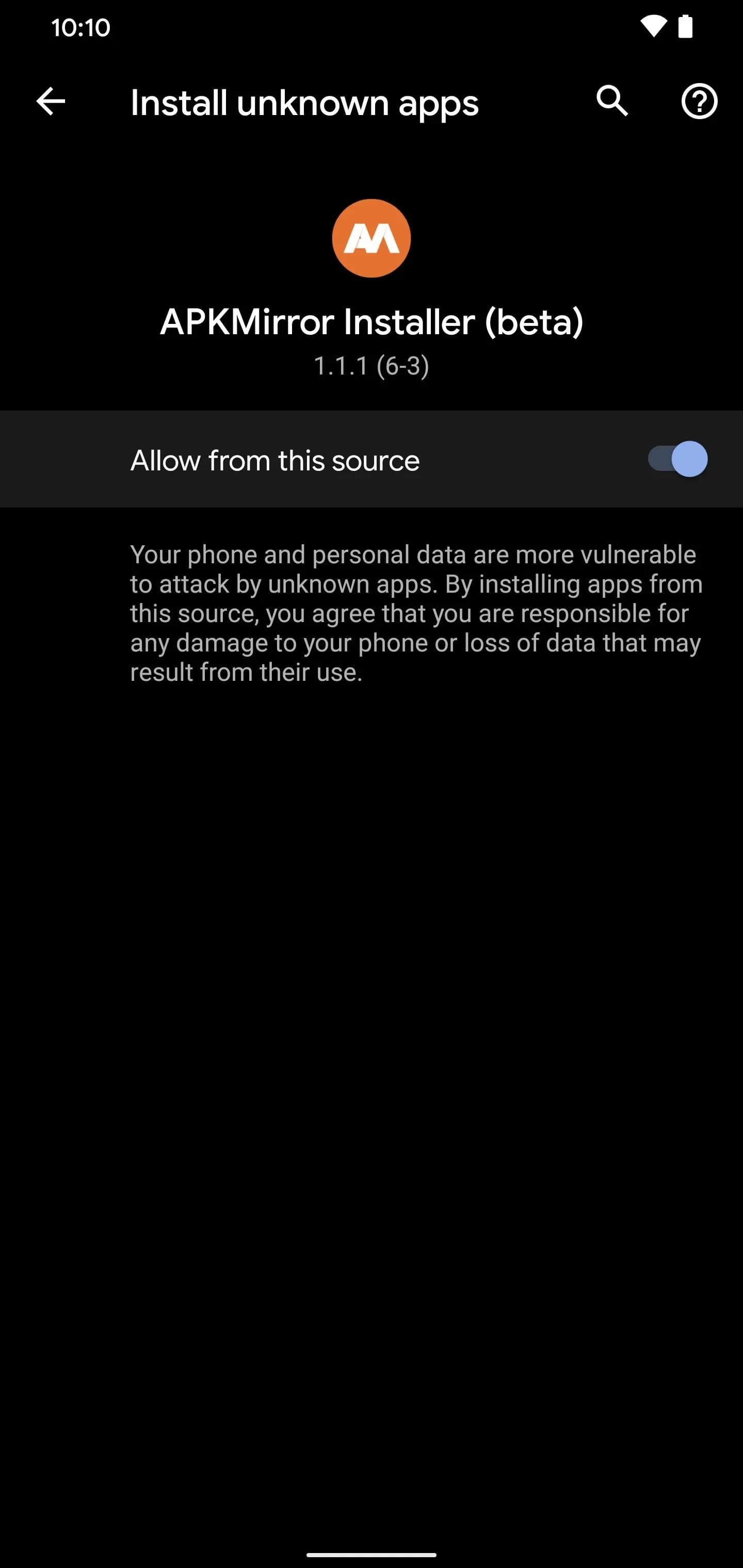
This real Android screenshot uses an older APKMirror Installer version. The colour and wording may vary; confirm that the app named at the top is APKMirror Installer.Screenshot: Gadget Hacks - 6
Finish, then restore protection
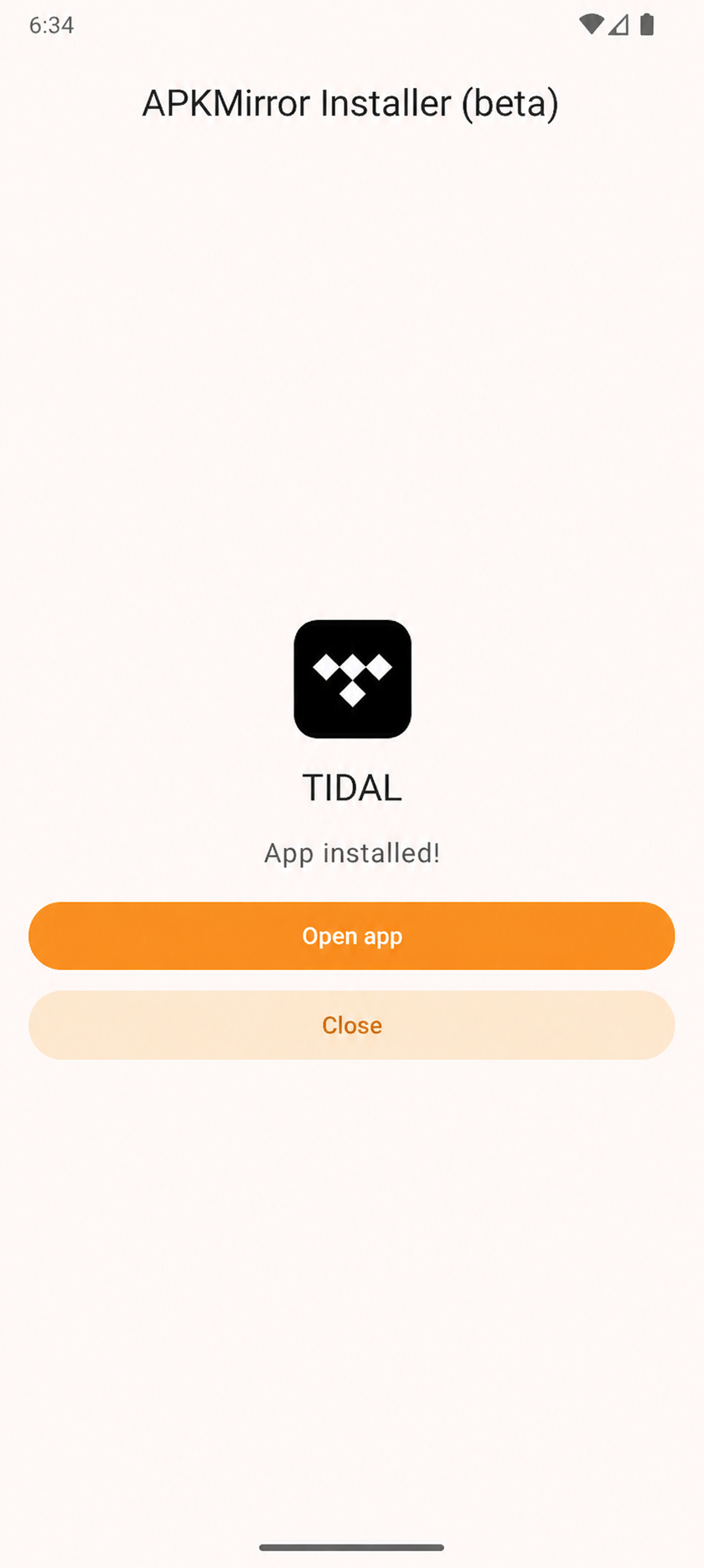
When Android says App installed, tap Open. Samsung users must turn Auto Blocker back on. You may also turn Allow from this source back off for APKMirror Installer.
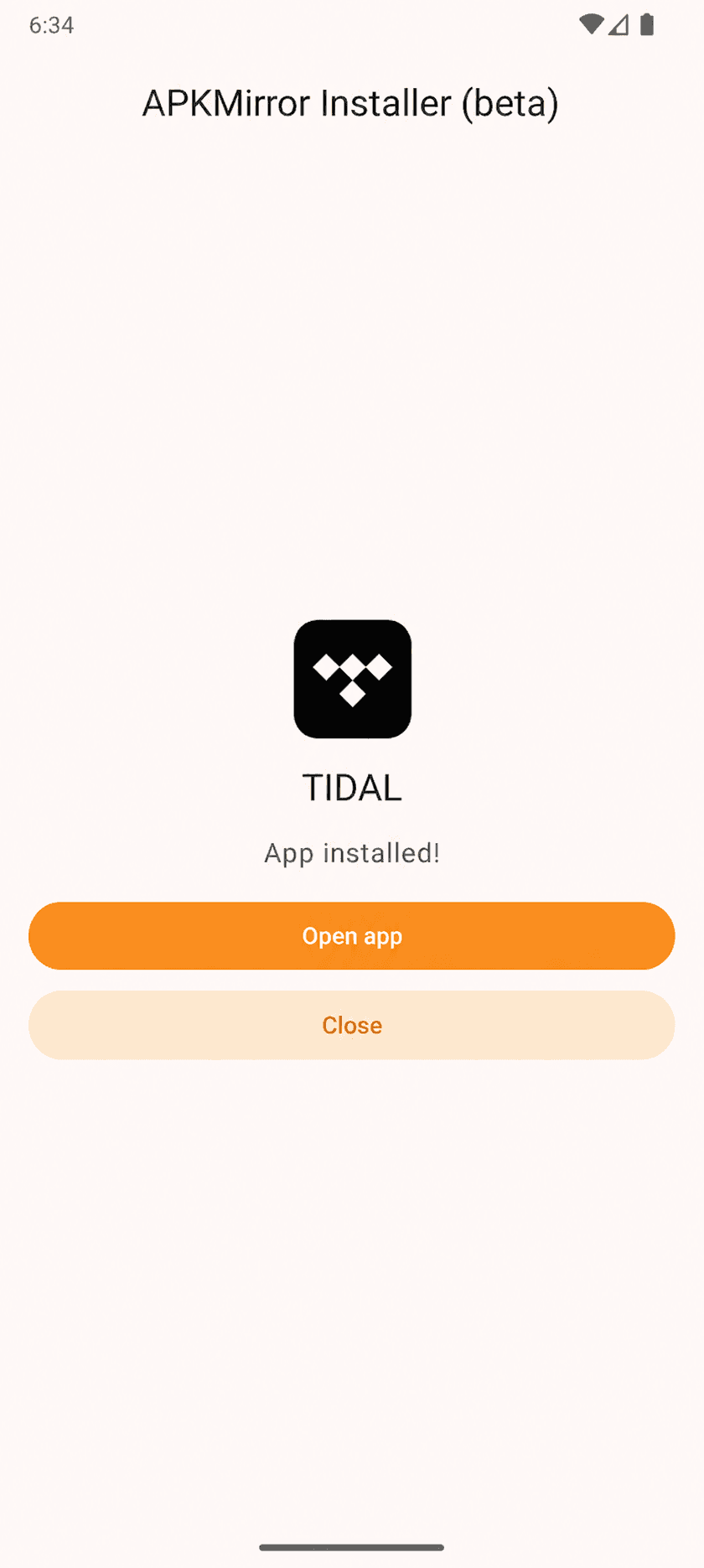
When TIDAL shows App installed, tap Open app. Then restore the temporary security settings.Screenshot: APKMirror Installer on Google Play
Sign in to TIDAL
- 1
Use the login from your AudiophileStream account
In TIDAL, choose Log in, not Sign up. Open your AudiophileStream account, reveal the TIDAL email and password, and enter them exactly as shown.
Open your AudiophileStream account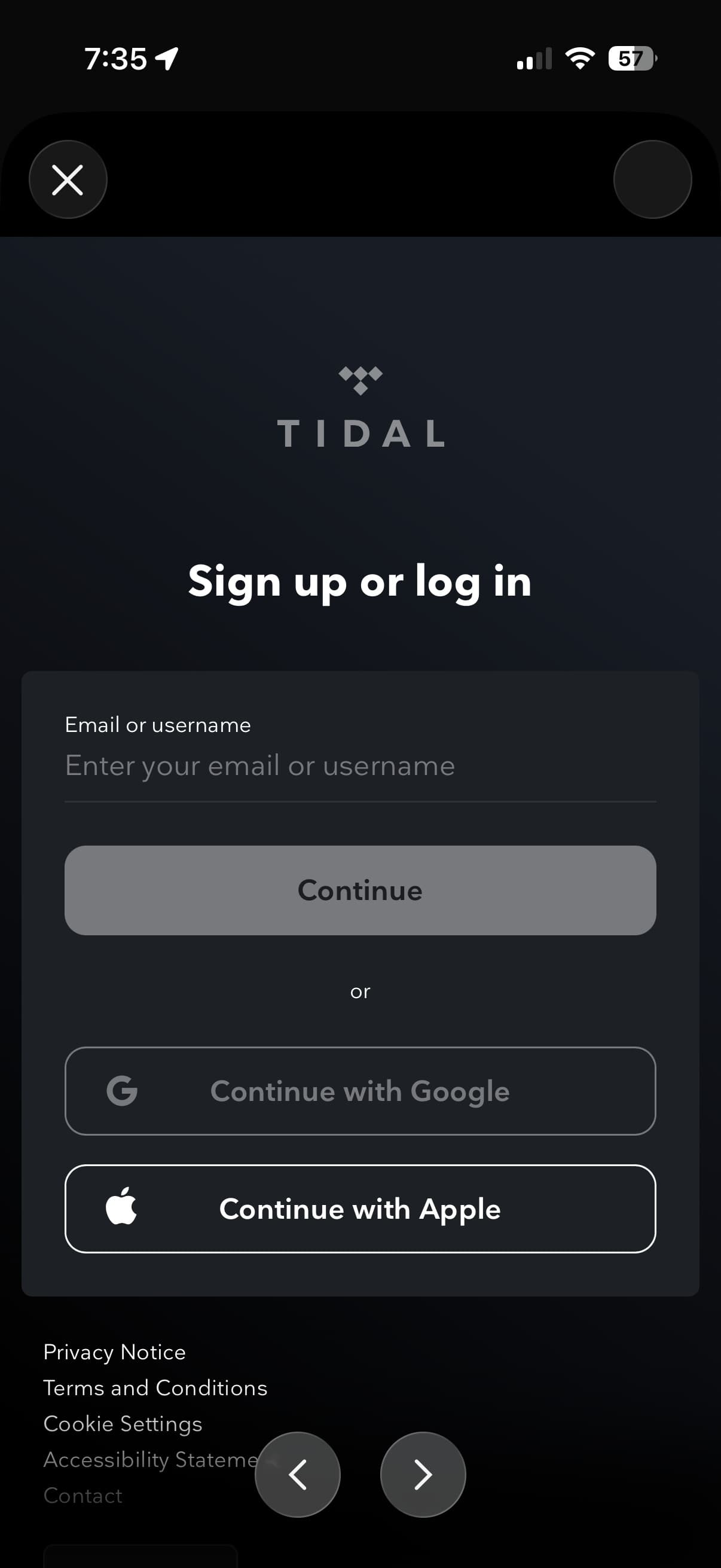
Enter the TIDAL email from your AudiophileStream account, tap Continue, then enter its TIDAL password.Screenshot: TIDAL sign-in capture

Alternative: USB Audio Player PRO
Use this optional route if you prefer TIDAL inside USB Audio Player PRO, especially with a compatible USB DAC. USB Audio Player PRO is a separate paid Android app.
- 1Paid app
Buy and install USB Audio Player PRO
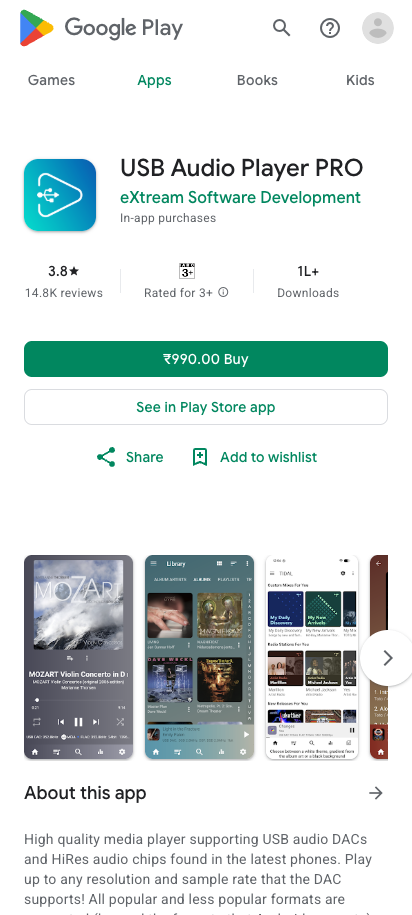
Open the Google Play listing and confirm that the developer is eXtream Software Development. Tap Buy, complete the purchase, and install the app.
Open USB Audio Player PRO in Google Play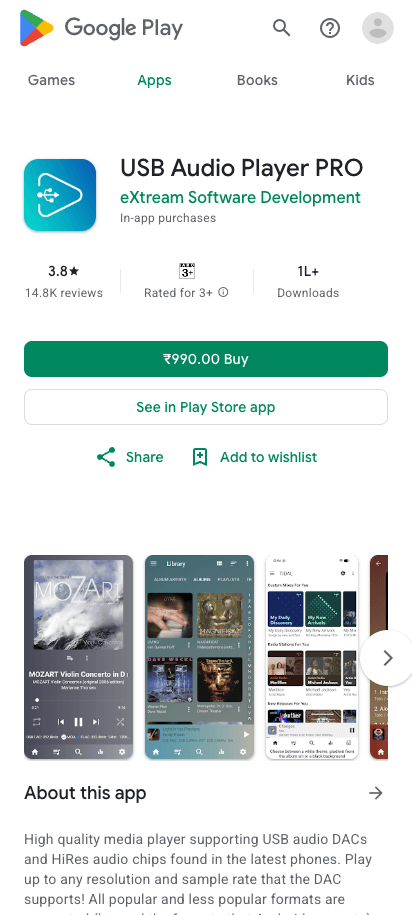
Confirm the app name and eXtream Software Development before buying and installing it.Screenshot: Google Play - 2
Open TIDAL inside USB Audio Player PRO
Open USB Audio Player PRO, tap the menu in the top-left corner, and choose TIDAL. Enter the TIDAL email and password from your AudiophileStream account. If Android asks whether USB Audio Player PRO may access a connected USB DAC, tap OK.
Open your AudiophileStream account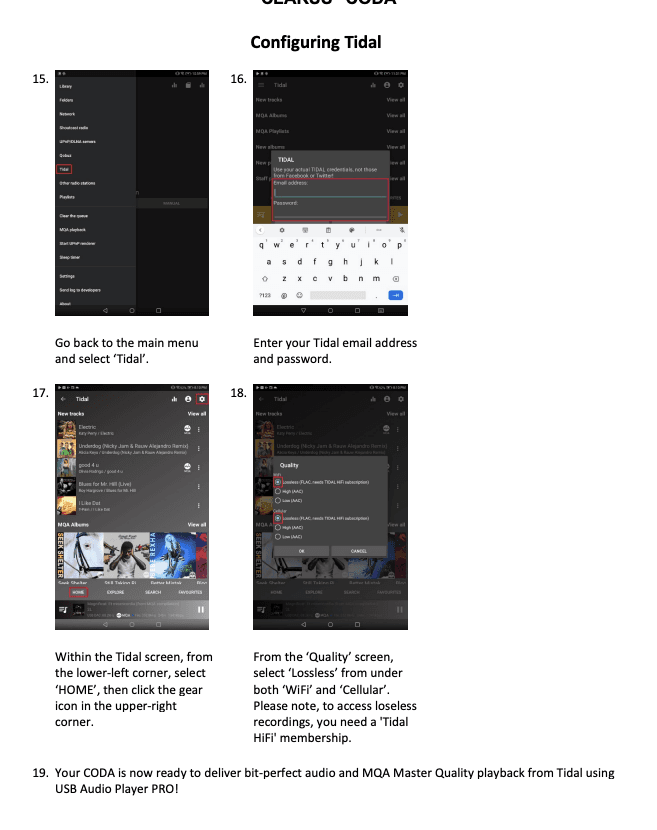
This real UAPP setup page shows where to choose TIDAL, enter its login, and select the highest available streaming quality.Screenshot: Clarus CODA UAPP setup guide

If something does not match
- 1
If the downloaded file does not appear, open your Files app, check Downloads, and confirm that the filename ends in .apkm.
- 2
If Android says the app is incompatible, confirm that the phone runs Android 7 or newer. Contact support before trying a different file.
- 3
If installation is blocked on Samsung, confirm Auto Blocker is temporarily off and APKMirror Installer is allowed to install unknown apps.
Downloads and official help
Open the exact resources referenced in this guide.